
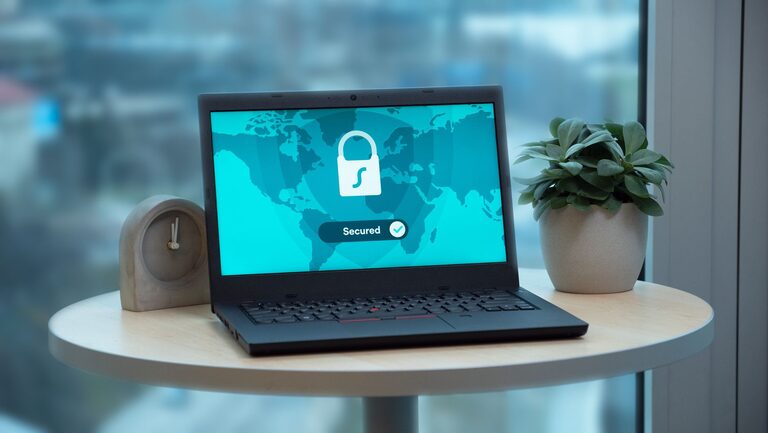
Protecting personal information online does not require advanced technical skills. A few consistent habits can reduce the chance of unauthorized access, unwanted tracking, and accidental data exposure.
Your personal information may include your name, address, phone number, email address, account passwords, photos, location, and payment details. The following steps can help you manage this information more safely in everyday digital activities.
1. Use Strong, Unique Passwords
Passwords are one of the simplest and most important ways to protect online accounts. A password that is short, common, or reused across several websites can put multiple accounts at risk if one service experiences a security problem.
Create a different password for every important account. Strong passwords are usually long and difficult to guess. Consider using a memorable passphrase made from several unrelated words, along with numbers or other allowed characters.
Good password habits include:
- Use a unique password for email, banking, shopping, and social media accounts.
- Avoid names, birthdays, addresses, and common words.
- Do not share passwords through text messages or email.
- Change a password if you believe it has been exposed.
- Never use your email password for other services.
Consider a Password Manager
A password manager can create and store unique passwords in an encrypted vault. You only need to remember one main password for the manager. Choose a reputable service, create a strong main password, and enable additional security features when available.
2. Turn On Multi Factor Authentication
Multi factor authentication, sometimes called MFA, adds another verification step after you enter your password. This may be a code from an authentication app, a security key, or a confirmation on a trusted device.
MFA can help protect an account even if someone learns your password. Enable it first on your email account because email is often used to reset passwords for other services. Then add it to social media, shopping, cloud storage, and other important accounts.
Authentication apps and security keys are generally stronger options than text message codes, but any available MFA method can provide additional protection compared with a password alone.
3. Keep Devices and Apps Updated
Updates often include fixes for security weaknesses, along with new features and performance improvements. Delaying updates can leave your phone, computer, browser, or apps exposed to problems that have already been addressed.
Turn on automatic updates when the option is available. Regularly update:
- Your computer and mobile device operating system
- Web browsers
- Mobile and desktop applications
- Home internet equipment, such as routers
- Security and privacy tools
Remove apps and programs you no longer use. Unused software can collect information, take up storage, or remain unpatched over time.
4. Be Careful With Links and Attachments
Scammers often use messages that appear to come from a familiar company, coworker, friend, or service. These messages may ask you to click a link, open an attachment, confirm account details, or make an urgent decision.
Before clicking, pause and check:
- Is the message expected?
- Does the sender address look correct?
- Is the request unusually urgent or threatening?
- Does the link lead to the website you expect?
- Are there spelling, formatting, or payment instructions that seem unusual?
If a message claims there is a problem with an account, visit the company’s official website by typing the address yourself or using a trusted bookmark. Avoid using contact information or links provided in a suspicious message.
5. Review Privacy Settings
Websites, apps, and social platforms often collect information about how you use their services. Privacy settings can help you decide what information is shared and who can see it.
Review these settings regularly, especially after installing a new app or receiving a platform update. Look for controls related to:
- Profile visibility
- Location sharing
- Contact access
- Camera and microphone permissions
- Personalized advertising
- Search and activity history
Give apps access only to the features they need. For example, a simple utility app may not need access to your contacts, microphone, or precise location.
6. Share Less Personal Information
Information posted online can be copied, saved, and shared beyond its original audience. Think carefully before publishing details that could identify you, your family, your home, or your daily routine.
Avoid sharing sensitive details such as:
- Your full home address
- Travel plans while you are away
- Identification numbers
- Answers to common security questions
- Photos showing documents, tickets, or private information
Check photos before posting them. A picture may reveal a home address, school name, location, or document in the background. Review your old posts and remove information you no longer want publicly available.
7. Use Secure Connections
When entering personal information online, check that the website address begins with “https.” The padlock symbol in a browser indicates that the connection is encrypted between your device and the website. However, it does not prove that the website itself is trustworthy, so check the address carefully.
Be cautious when using public Wi-Fi. Avoid accessing particularly sensitive accounts on networks you do not recognize or control. If you must use public Wi-Fi, confirm the network name with staff, keep your device updated, and avoid entering personal information on unfamiliar websites.
8. Secure Your Email Account
Your email account may be connected to many other services. Someone who gains access to it could attempt to reset passwords or view private messages.
Use a unique password and MFA for your email account. Review recovery email addresses and phone numbers to make sure they are current. Check account activity for unfamiliar sign-ins, devices, or forwarding rules.
If you receive an alert about a login you do not recognize, change your password from the official account settings page and review recent activity.
9. Shop and Pay Carefully Online
Use well-known websites and check the address before entering payment information. Be cautious with unexpected discounts, countdown timers, and offers that seem unusually good.
When creating shopping accounts, provide only the information required. Consider checking out as a guest when you do not need to save your details. Review saved payment methods and remove cards or addresses you no longer use.
Monitor account notifications and statements for unfamiliar activity. Save receipts and order confirmations, but store them securely because they may include personal or purchase information.
10. Make Backups and Protect Your Devices
Backups can help you recover important files if a device is lost, damaged, or affected by unwanted software. Back up photos, documents, and other important files to a trusted external drive or cloud service.
Protect your devices with a screen lock, fingerprint, or other available security feature. Turn on the ability to locate, lock, or erase a lost phone or computer remotely. Do not leave unlocked devices unattended in public places.
Create a Simple Online Safety Routine
Online privacy improves when good practices become routine. Once a month, review your account activity, privacy settings, installed apps, and saved payment methods. Every few months, check your password manager and remove accounts you no longer use.
No single step can prevent every online risk. However, using unique passwords, enabling MFA, updating devices, limiting shared information, and checking messages carefully can make your accounts and personal data much harder to misuse.