
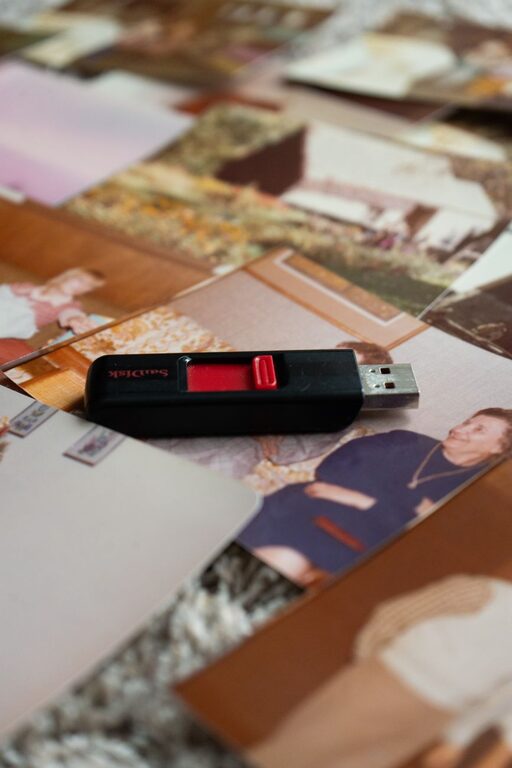
Family photos often live in several places at once: a phone, a tablet, a computer, a camera, and perhaps an online storage account. Without a simple system, pictures can become scattered, duplicated, or difficult to find.
The good news is that you do not need complicated software or advanced technical skills to organize them. A few consistent habits can help you create one reliable photo collection that works across all your devices.
Start With One Main Photo Library
Before moving files, decide where you want your complete photo collection to live. This will be your main library, or “source of truth.”
For many families, a computer or trusted cloud photo service works well. Your main library should be:
– Large enough for your current collection
– Easy to access from your phone and tablet
– Simple to back up
– Organized in a way the whole household can understand
Your phone and tablet can still hold recent photos, but they should connect to the main library. This reduces the chance of having different versions of your collection on every device.
If you use a cloud service, check its storage limits and automatic upload settings. If you store photos on a computer, make sure the computer is backed up regularly.
Gather Photos From Every Device
Begin by collecting photos from all the places where your family currently saves them. This may include:
– Phones and tablets
– Digital cameras and memory cards
– Computers and external drives
– Messaging apps
– Social media downloads
– Scanned prints
– Shared folders from relatives
Do not try to organize everything at once. First, make sure you have copies of the photos in one safe location. Once the files are gathered, you can sort and remove duplicates.
When transferring photos, use clear folder names such as “Phone Uploads” or “Camera Imports.” These temporary folders make it easier to identify files that still need attention.
Choose a Simple Folder Structure
A clear folder system can make computer-based photo collections much easier to browse. Organize photos by year first, then by event or month.
For example:
– 2022
– 2022-03 Spring Break
– 2022-06 Alex Birthday
– 2022-12 Holiday Gathering
– 2023
– 2023-04 School Concert
– 2023-08 Beach Trip
– 2023-11 Family Visit
Starting folder names with the year and month keeps them in chronological order. Add a short event description so you can understand the folder without opening it.
Avoid creating too many levels of folders. A structure that is several layers deep can become frustrating to maintain. In most cases, year and event are enough.
Organize Photos on Your Phone
Your phone is usually where new family photos are created, so it is the most important device to manage regularly.
Start by reviewing your camera roll and deleting images that are clearly unnecessary, such as:
– Accidental photos
– Blurry images
– Duplicate shots
– Screenshots you no longer need
– Temporary images saved from messages
Keep several good photos from an event rather than every nearly identical picture. This makes future browsing much more enjoyable.
Next, create albums for useful categories. Examples include:
– Birthdays
– Holidays
– School events
– Vacations
– Grandparents
– Pets
– Favorite family moments
Albums do not usually move or duplicate the original photo. They simply provide another way to view selected images. This makes albums useful for browsing without changing your main collection.
Turn on automatic photo uploads if you want new images to appear on your other devices. After enabling this feature, check that uploads are completing successfully before deleting photos from your phone.
Keep Your Tablet Easy to Browse
Tablets are often used for sharing family photos with children, relatives, or guests. Instead of loading every image onto the tablet, use albums or a connected photo app to show selected collections.
Create simple albums with names that are easy to understand, such as:
– Family Favorites
– Recent Photos
– Trips
– Holidays
– Baby Years
– Pets
If your tablet has limited storage, avoid downloading the entire library. Streaming or viewing photos through a connected service may save space.
Review tablet photo settings occasionally. Some devices automatically save images received through messages or downloaded from websites. These files can clutter the photo library if they are not needed.
Clean Up Your Computer Collection
A computer is often the best place for detailed organization because it provides a larger screen and more storage. Start by sorting photos into broad groups before making smaller decisions.
A helpful cleanup process is:
- Move unsorted photos into a temporary folder.
- Group them by year or approximate date.
- Create event folders where the details are clear.
- Remove obvious duplicates and unwanted files.
- Rename important photos or folders.
- Back up the organized collection.
You do not need to rename every photo individually. If you want to rename files, focus on important images or use batch-renaming tools. A name such as “2024-07-15 Family Reunion 001” is more useful than a camera-generated name like “IMG_4832.”
Be careful when deleting files. If you are unsure whether two photos are duplicates, keep both until you have confirmed that they are identical.
Use Dates and Details to Find Photos
Many photo apps automatically sort images by date, location, or detected subjects. These features can save time, but they are not always perfect.
Add helpful details to important photos when possible. You might include:
– The names of people
– The event
– The location
– The year
– A short memory or story
For example, a photo caption could say, “Grandpa’s 70th birthday at home, June 2024.” These details can be especially valuable years later, when family members may not remember the exact circumstances.
Avoid relying only on people’s names if several relatives share similar names. Include an event or date to make the information more specific.
Create a Regular Photo Routine
Photo organization is easier when it becomes a small, regular task. Set aside a few minutes every week or month to manage new images.
A monthly routine might include:
– Reviewing recent phone photos
– Removing accidental images
– Adding favorites to albums
– Moving important photos to the main library
– Checking that backups are current
– Emptying temporary folders
You can also create a larger seasonal routine. At the end of each year, review the year’s photos, create a highlights album, and print or share a few favorites.
Protect Your Family Memories
Organization and backup should work together. A neat photo library is not useful if it can disappear after a damaged device or accidental deletion.
Keep at least two copies of important photos in different locations. For example, you might use:
– A computer
– An external storage drive
– A trusted cloud service
An external drive should be disconnected when it is not being used for backups. This helps protect it from accidental changes and some types of device problems.
Test your backups from time to time. Open a few files to confirm that the photos are readable and that the backup process is working as expected.
Make the System Easy for Everyone
The best family photo system is one that everyone can follow. Use familiar folder names, avoid unnecessary complexity, and explain where new photos should go.
Choose one person to manage the main library if that is practical, but invite other family members to contribute. Shared albums can make it easier for relatives to add photos from the same event without sending files through multiple messaging apps.
With a consistent approach, your phone, tablet, and computer can work together instead of storing disconnected collections. Gather photos in one main library, use simple albums and folders, review new images regularly, and keep reliable backups. Over time, these habits will make your family memories easier to find and enjoy.